Using our prompt library
At https://sai-library.saiapplications.com/, we have a collection of prompts that are available for anyone in Stefanini to use. These prompts are designed in the form of tools, which allow the user to enter one or more inputs. These inputs are then compiled within the tool to create the final prompt that will be sent to the LLM.
Installing Tools
To be able to use a tool, first you need to be install it. Just click on the “heart” Button to do this.
From the home page, click the "Explore" button located in the bottom left corner. This will open a list of the available prompts.
Each tool is presented with its name, description, owner, date of creation, date of last modification, number of times used, rating and a button that allows you to subscribe/unsubscribe to it.
You can use the search bar on the top to search for tools, and the pagination arrows at the bottom to navigate through the list.
Once a tool is installed, it will appear in the list to the left of the page.
Using tools
To use a tool click it on the list to the left. That tool should then be loaded into the page. Most of the tools have the same structure:
- The selected tool and his owner
- Report Bug Button
- Number of times this tool was used
- Like/Dislike button and current rating of this tool
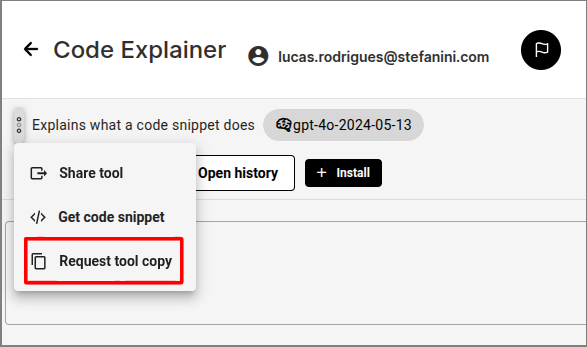
- Extra options, like Share Tool, Code Snipped or Request a Tool Copy
- Model used by Tool
- Use tool in a SAI Assistant
- History User Interactions
- Install tool.
- Inputs
- Output
Fill out the inputs of the tool and click Submit. The result will be shown in the bottom.
Chat Tools
There are only two tools that does not follow this structure: Chat and Chat GPT-4. These two have a chat structure which mimics OpenAI's ChatGPT, with an input box in the bottom when you can ask things to the LLM, and the chat history in the center. But these also allow you to change the System message in the top, which controls the general behavior of the LLM.
Use tool in a BOT
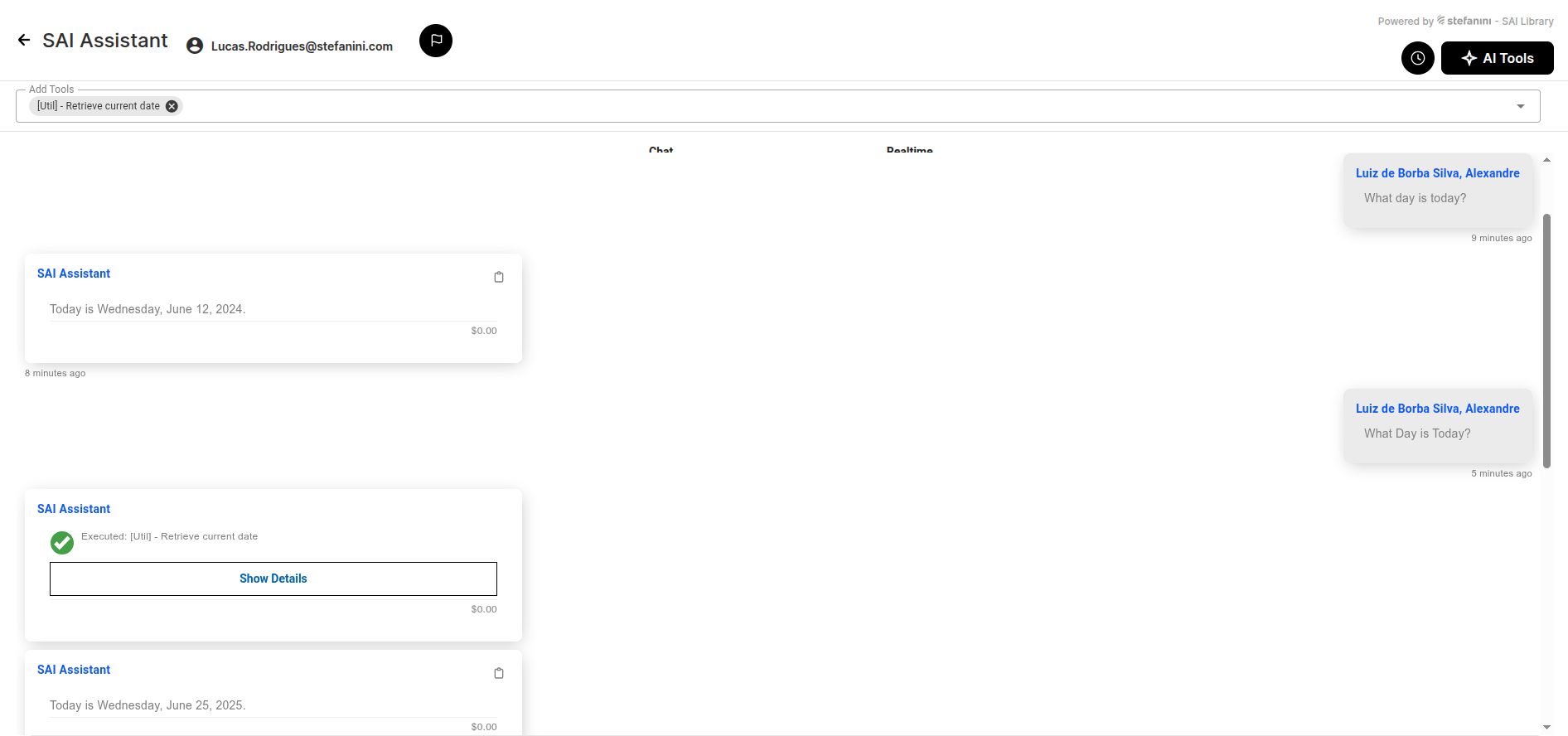
You can use any tool in a ChatBot to enhance your daily activities. For example, if you ask the SAI Assistant, “What day is today?”, the response may differ from what you expect.
Some AI responses are based on pre-existing data (knowledge cutoff) rather than real-time system queries. If the response wasn’t generated using a real-time check, it might reflect an older or incorrect date.
To provide the current date from the ChatBot, we can use a tool called [Util] - Retrieve current date
Request a Tool Copy
Sometimes you need to adapt a tool to customize something. For this, you can request a Tool Copy from the owner so you can modify it as you wish.